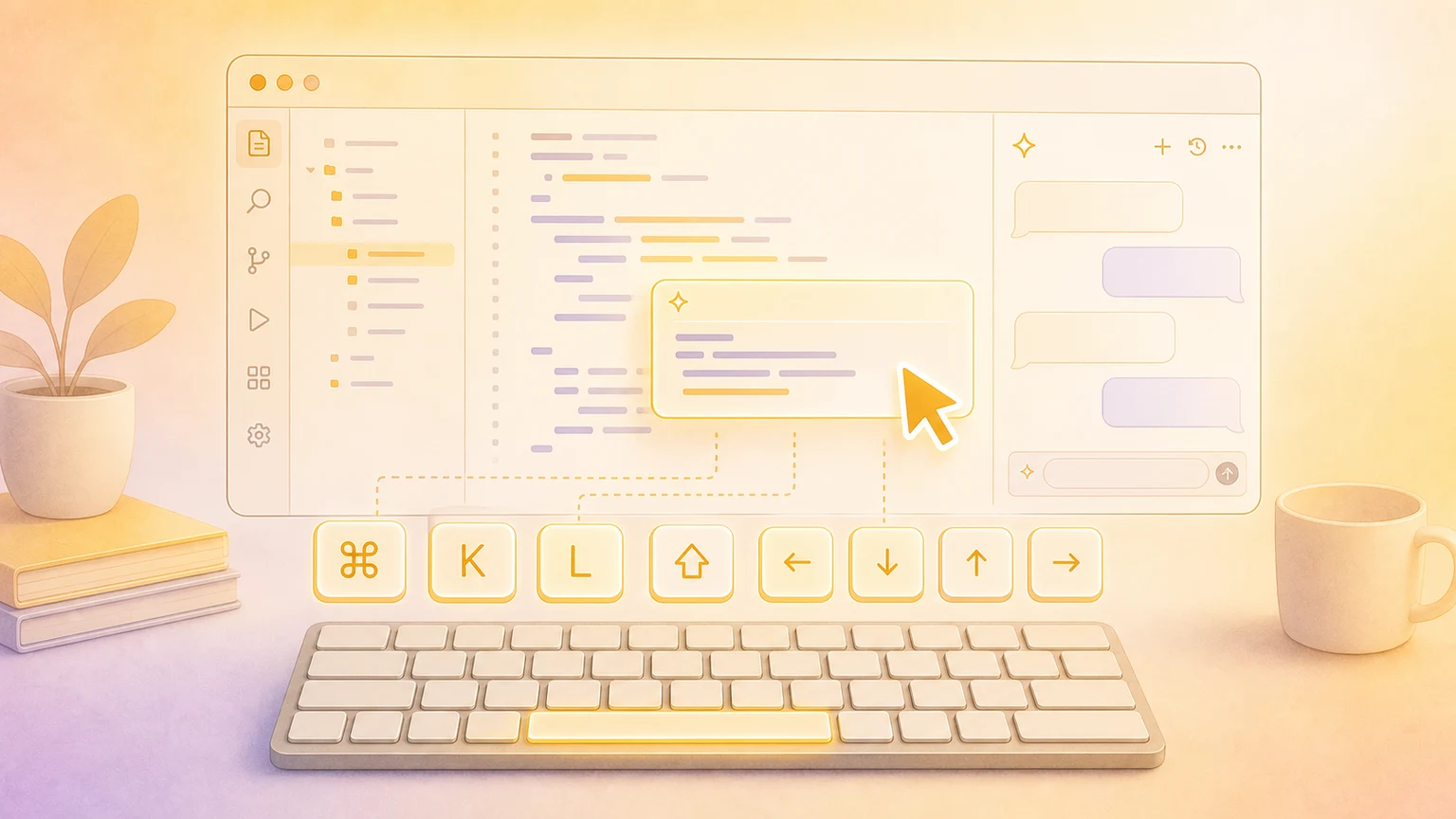
Cursor brings AI directly into your editor. These shortcuts help you tap into its power while keeping your hands on the keyboard.
AI-powered shortcuts
| Action | Shortcut |
|---|
| Open AI Chat | ⌘ + L |
| Inline Edit with AI | ⌘ + K |
| Accept AI suggestion | Tab |
| Reject AI suggestion | Esc |
| Toggle Composer | ⌘ + I |
| Add selection to Chat | ⌘ + ⇧ + L |
| Generate commit message | ⌘ + ⇧ + G (in source control) |
The inline edit shortcut (⌘ + K) is your Swiss Army knife—highlight code, describe what you want, and watch Cursor rewrite it.
Command center essentials
| Action | Shortcut |
|---|
| Command Palette | ⌘ + ⇧ + P |
| Quick Open file | ⌘ + P |
| Go to Line | ⌃ + G |
| Go to Symbol in Workspace | ⌘ + T |
| Toggle Zen Mode | ⌘ + K Z |
Navigation
| Action | Shortcut |
|---|
| Jump to Symbol in file | ⌘ + ⇧ + O |
| Open Definition | F12 |
| Peek Definition | ⌥ + F12 |
| Toggle Sidebar | ⌘ + B |
| Toggle Terminal | ⌃ + ` |
| Go Back | ⌃ + - |
| Go Forward | ⌃ + ⇧ + - |
Find and replace
| Action | Shortcut |
|---|
| Find | ⌘ + F |
| Replace | ⌘ + H |
| Find in Files | ⌘ + ⇧ + F |
| Replace in Files | ⌘ + ⇧ + H |
| Find Next | ⌘ + G |
| Find Previous | ⌘ + ⇧ + G |
Editing
| Action | Shortcut |
|---|
| Add next occurrence to selection | ⌘ + D |
| Move line up/down | ⌥ + ↑ / ⌥ + ↓ |
| Copy line up/down | ⌥ + ⇧ + ↑ / ⌥ + ⇧ + ↓ |
| Create additional cursor | ⌥ + Click |
| Toggle line comments | ⌘ + / |
| Toggle block comments | ⌥ + ⌘ + A |
| Delete line | ⌘ + ⇧ + K |
| Select all occurrences | ⌘ + ⇧ + L |
Code intelligence
| Action | Shortcut |
|---|
| Trigger Suggestions | ⌃ + Space |
| Rename Symbol | F2 |
| Format Document | ⇧ + ⌥ + F |
| Quick Fix | ⌘ + . |
| Show Hover | ⌘ + K ⌘ + I |
Multi-pane and tabs
| Action | Shortcut |
|---|
| Split editor | ⌘ + \ |
| Focus editor group | ⌘ + 1, ⌘ + 2, ⌘ + 3 |
| Close Editor | ⌘ + W |
| Reopen Closed Editor | ⌘ + ⇧ + T |
| Cycle Through Tabs | ⌃ + Tab |
Terminal
| Action | Shortcut |
|---|
| Toggle Terminal | ⌃ + ` |
| New Terminal | ⌃ + ⇧ + ` |
| Split Terminal | ⌘ + \ |
| Clear Terminal | ⌘ + K |
Tips for Cursor
- Use
⌘ + L to open Chat, then type @ to reference files, symbols, or documentation
- Highlight code before pressing
⌘ + K to give AI context for inline edits
- Press
Tab repeatedly to cycle through AI suggestions
- Use Composer (
⌘ + I) for multi-file edits and larger refactors
Master these shortcuts and you'll spend less time clicking and more time building.
Show your shortcuts on screen
Creating tutorials or presenting live? KeyScreen displays your keystrokes beautifully on screen so viewers always know what you pressed.