Microsoft Word Keyboard Shortcuts: The Complete Guide for Mac
Write, edit, format, review, and navigate documents faster with Microsoft Word keyboard shortcuts for Mac.
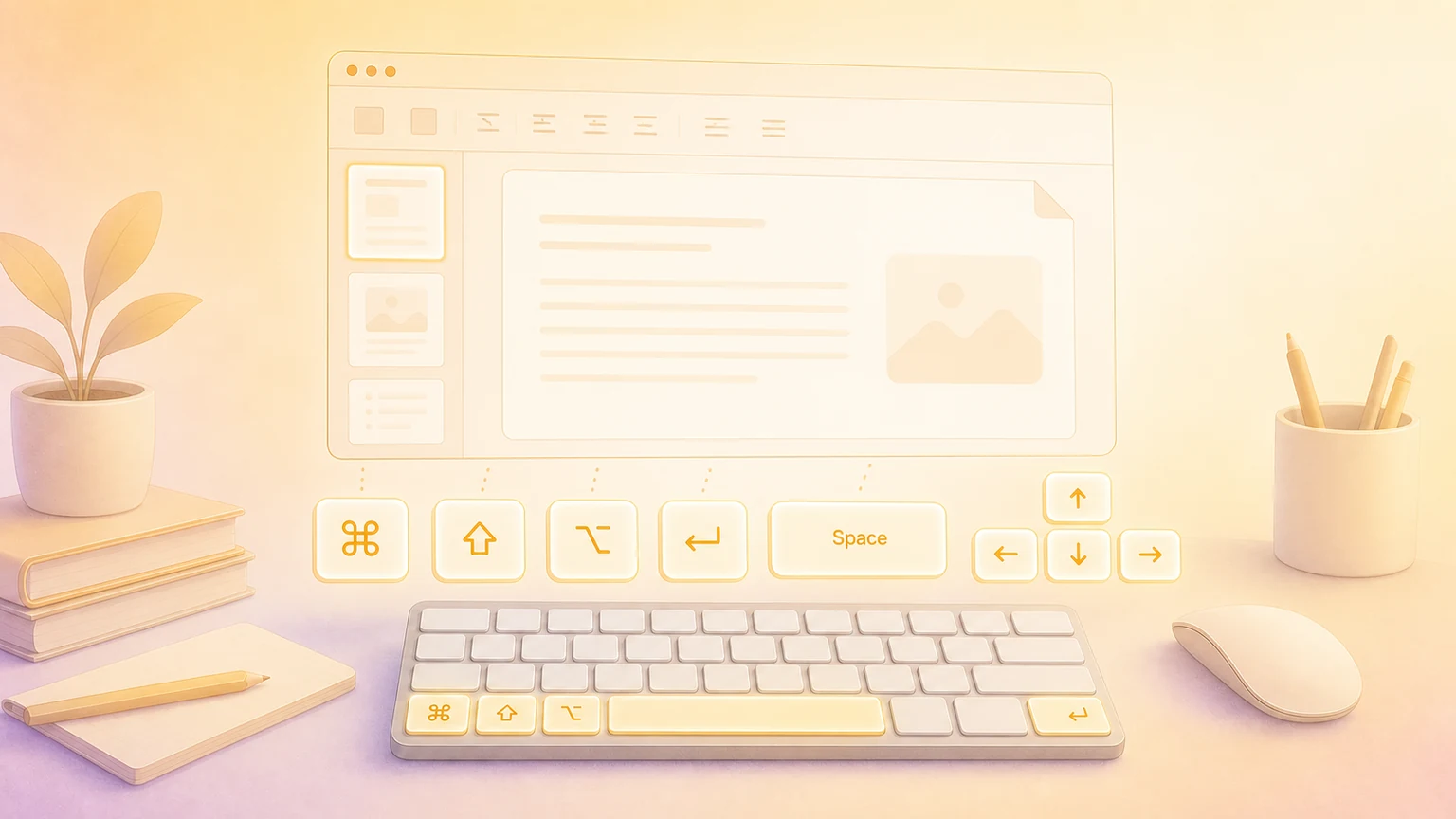
Microsoft Word is still one of the most recognizable Mac apps for writing, editing, reviewing, and sharing documents. It also has a deep keyboard shortcut system that goes far beyond copy, paste, and bold.
Microsoft’s official Word shortcut reference notes that shortcuts are based on the U.S. keyboard layout, some commands can conflict with macOS shortcuts, and some function-key behavior depends on your Mac keyboard settings. This guide rewrites the most useful Word for Mac shortcuts with consistent notation: ⌘ for Command, ⇧ for Shift, ⌥ for Option, and ⌃ for Control.
Essential Word shortcuts
Start with these before memorizing the deeper editing and review commands.
| Action | Shortcut |
|---|---|
| Save the current document | ⌘ + S |
| Save As | ⇧ + ⌘ + S |
⌘ + P | |
| Undo | ⌘ + Z or F1 |
| Redo | ⌘ + Y |
| Cut | ⌘ + X or F2 |
| Copy | ⌘ + C or F3 |
| Paste | ⌘ + V or F4 |
| Paste text only | ⇧ + ⌘ + V |
| Find text in the document | ⌘ + F |
| Find and replace | ⌃ + H |
| Go To page, bookmark, footnote, or comment | ⌥ + ⌘ + G or F5 |
| Spelling and Grammar | ⌥ + ⌘ + L or F7 |
| Find next spelling or grammar issue | ⌥ + F7 |
| Open Dictionary | ⌥ + ⇧ + F7 |
| Expand or minimize the ribbon | ⌥ + ⌘ + R |
| Zoom in | ⌘ + + |
| Zoom out | ⌘ + - |
| Return to 100% zoom | ⌘ + 0 |
Pro tip: ⇧ + ⌘ + V is the shortcut to remember when pasting from the web, email, or another document. It keeps your current Word formatting instead of bringing in mismatched fonts and spacing.
Document navigation
These shortcuts are especially useful in long reports, contracts, proposals, lecture notes, and manuscripts.
| Action | Shortcut |
|---|---|
| Move one word left | ⌥ + ← |
| Move one word right | ⌥ + → |
| Move up one paragraph | ⌘ + ↑ |
| Move down one paragraph | ⌘ + ↓ |
| Move to beginning of the current line | ⌘ + ← or Home |
| Move to end of the current line | ⌘ + → or End |
| Move to top of previous page | ⌘ + Page Up or ⌘ + Fn + ↑ |
| Move to top of next page | ⌘ + Page Down or ⌘ + Fn + ↓ |
| Move to beginning of the document | ⌘ + Home or ⌘ + Fn + ← |
| Move to end of the document | ⌘ + End or ⌘ + Fn + → |
| Move to previous insertion point | ⇧ + F5 |
| Scroll up one screen | Page Up |
| Scroll down one screen | Page Down |
| Switch to the next Word window | ⌘ + Grave Accent |
| Switch to the previous Word window | ⇧ + ⌘ + Grave Accent |
If your MacBook keyboard does not have dedicated Home, End, Page Up, or Page Down keys, the Fn versions are the ones to practice.
Selecting text precisely
Selection shortcuts save the most time when you are cleaning up dense text, rearranging sections, or applying styles to several paragraphs.
| Action | Shortcut |
|---|---|
| Select text by character or line | ⇧ + Arrow |
| Select word to the left | ⇧ + ⌥ + ← |
| Select word to the right | ⇧ + ⌥ + → |
| Select to beginning of current line | ⇧ + ⌘ + ← or ⇧ + Home |
| Select to end of current line | ⇧ + ⌘ + → or ⇧ + End |
| Select to beginning of current paragraph | ⇧ + ⌘ + ↑ |
| Select to end of current paragraph | ⇧ + ⌘ + ↓ |
| Select to beginning of the document | ⇧ + ⌘ + Home |
| Select to end of the document | ⇧ + ⌘ + End |
| Select all document content | ⌘ + A |
| Start extended selection mode | F8 |
| Expand selection in extended mode | Press F8 repeatedly |
| Reduce extended selection | ⇧ + F8 |
| Stop extended selection | Escape |
| Select a vertical block of text | ⇧ + ⌘ + F8, then arrow keys |
Pro tip: if a selection keeps growing too far, press ⇧ + F8 to step it back instead of starting over.
Editing and paste commands
Word has several editing shortcuts that are easy to miss because they are more document-specific than normal clipboard commands.
| Action | Shortcut |
|---|---|
| Cut selected content | ⌘ + X or F2 |
| Copy selected content | ⌘ + C or F3 |
| Paste from clipboard | ⌘ + V or F4 |
| Open Paste Special | ⌃ + ⌘ + V |
| Cut selected content to the Spike | ⌘ + F3 |
| Paste the Spike contents | ⇧ + ⌘ + F3 |
| Copy selected text formatting | ⌥ + ⌘ + C |
| Paste selected text formatting | ⌥ + ⌘ + V |
| Paste text only | ⇧ + ⌘ + V |
| Create an AutoText entry | ⌥ + F3 |
| Repeat the last Find or Go To action | ⇧ + F4 |
The Spike is Word’s older multi-cut clipboard. It is useful when you want to collect several separate text blocks and paste them together somewhere else.
Character formatting
These are the shortcuts most writers and editors use every day.
| Action | Shortcut |
|---|---|
| Bold | ⌘ + B |
| Italic | ⌘ + I |
| Underline | ⌘ + U |
| Underline words but not spaces | ⇧ + ⌘ + W |
| Double underline | ⇧ + ⌘ + D |
| Strikethrough | ⇧ + ⌘ + X |
| Small caps | ⇧ + ⌘ + K |
| All caps | ⇧ + ⌘ + A |
| Switch between uppercase, lowercase, and title case | ⇧ + F3 |
| Open Font dialog | ⌘ + D |
| Increase font size | ⇧ + ⌘ + > |
| Decrease font size | ⇧ + ⌘ + < |
| Increase font size by 1 point | ⌘ + ] |
| Decrease font size by 1 point | ⌘ + [ |
| Subscript | ⇧ + ⌘ + - |
When you are polishing a document, ⌥ + ⌘ + C and ⌥ + ⌘ + V are often faster than hunting through the ribbon for Format Painter.
Paragraphs, styles, and spacing
Use these to keep a Word document structured, not just styled manually.
| Action | Shortcut |
|---|---|
| Align left | ⌘ + L |
| Center paragraph | ⌘ + E |
| Align right | ⌘ + R |
| Justify paragraph | ⌘ + J |
| Indent paragraph | ⌃ + ⇧ + M |
| Remove paragraph indent | ⇧ + ⌘ + M |
| Create hanging indent | ⌘ + T |
| Remove hanging indent | ⇧ + ⌘ + T |
| Single spacing | ⌘ + 1 |
| Double spacing | ⌘ + 2 |
| 1.5-line spacing | ⌘ + 5 |
| Apply Normal style | ⇧ + ⌘ + N |
| Apply Heading 1 | ⌥ + ⌘ + 1 |
| Apply Heading 2 | ⌥ + ⌘ + 2 |
| Apply Heading 3 | ⌥ + ⌘ + 3 |
| Apply List style at beginning of line | ⇧ + ⌘ + L |
| Insert nonbreaking space | ⌥ + Space |
Pro tip: use heading shortcuts instead of manually making titles bigger and bolder. Real heading styles make navigation, tables of contents, accessibility, and later formatting much easier.
Breaks, tables, and fields
These shortcuts are useful for more structured Word documents.
| Action | Shortcut |
|---|---|
| Insert line break | ⇧ + Return |
| Insert page break | ⌘ + Return |
| Insert column break | ⇧ + ⌘ + Return |
| Insert optional hyphen | ⌥ + ⌘ + - |
| Insert nonbreaking hyphen | ⇧ + ⌥ + - |
| Move to next table cell | Tab |
| Move to previous table cell | ⇧ + Tab |
| Move to next table row | ↓ |
| Move to previous table row | ↑ |
| Add a new row at bottom of table | Tab at the end of the last row |
| Insert a row | ⌃ + ⌘ + I |
| Insert a new paragraph in a table cell | Return |
| Insert a tab character in a table cell | ⌥ + Tab |
| Insert DATE field | ⌃ + ⇧ + D |
| Insert PAGE field | ⌃ + ⇧ + P |
| Insert TIME field | ⌃ + ⇧ + T |
| Insert empty field | ⌘ + F9 |
| Update selected fields | F9 |
| Switch between field code and result | ⇧ + F9 |
| Switch between all field codes and results | ⌥ + F9 |
Some field shortcuts use function keys, and Microsoft flags a few as shortcut-conflict candidates. If F9 updates volume, brightness, or another system feature instead, try Fn + F9 or adjust your function-key settings.
Review, comments, and references
Editors, students, teachers, lawyers, and support teams usually live in these commands.
| Action | Shortcut |
|---|---|
| Insert a comment | ⌥ + ⌘ + A |
| Turn change tracking on or off | ⇧ + ⌘ + E |
| Move to beginning of a comment | Home |
| Move to end of a comment | End |
| Move to beginning of comments list in Reviewing Pane | ⌘ + Home |
| Move to end of comments list in Reviewing Pane | ⌘ + End |
| Insert footnote | ⌥ + ⌘ + F |
| Insert endnote | ⌥ + ⌘ + E |
| Display Spelling and Grammar | ⌥ + ⌘ + L or F7 |
| Find next spelling or grammar issue | ⌥ + F7 |
| Open Dictionary | ⌥ + ⇧ + F7 |
If you review documents on a laptop keyboard, remember that Home and End may need Fn combinations or an external keyboard.
Ribbon, KeyTips, and keyboard focus
Microsoft’s current ribbon guidance for Mac says KeyTips are supported in version 16.89 or later and can be enabled in the app’s Accessibility preferences. Once enabled, your activation key can show letters over ribbon commands so you can reach commands by keyboard.
| Action | Shortcut or path |
|---|---|
| Enable KeyTips | Word preferences, then Accessibility |
| Show KeyTips after enabling | ⌥ or ⇧ + ⌥, depending on your setting |
| Cancel KeyTips | Escape |
| Move focus between document, task panes, status bar, and ribbon | F6 |
| Move focus backward through those areas | ⇧ + F6 |
| Move through ribbon commands | Tab / ⇧ + Tab |
| Run the focused command | Space |
| Open a focused split-button menu | ↓ |
KeyTips are best for commands that do not deserve a permanent shortcut in your memory. For example, if you occasionally need a layout, reference, or review command, KeyTips can be faster than browsing the ribbon with a pointer.
Customizing and discovering Word shortcuts
Word for Mac can create custom shortcuts inside the app. Go to Tools → Customize Keyboard, choose a category and command, then type a shortcut with at least one modifier key such as ⌘, ⌃, ⌥, or ⇧. Word shows existing assignments so you can avoid taking over a shortcut you already use.
Microsoft also notes that default shortcuts cannot be removed from the Customize Keyboard dialog when the Remove button is disabled. You can reset shortcuts from the same dialog, but do that carefully if you have built a personal editing workflow.
For discovery, use the official Word keyboard shortcuts page, the current Word menu bar, and the shortcut hints shown in Word itself. If a shortcut is marked as conflicting with macOS, check System Settings and your function-key preferences before assuming Word changed.
Show Word shortcuts on screen
Recording a writing tutorial, editing walkthrough, classroom lesson, or document-review demo? KeyScreen displays your keystrokes beautifully on screen so viewers can follow every ⌘ + F, heading style, paste command, comment, and track-changes shortcut without guessing what you pressed.
You can also get KeyScreen on the Mac App Store if you want a clean keystroke overlay for tutorials, demos, livestreams, and remote training.