Safari Keyboard Shortcuts: The Complete Guide for Mac
Browse faster in Safari on Mac with essential shortcuts for tabs, search, scrolling, Reader, Reading List, bookmarks, downloads, and window management.
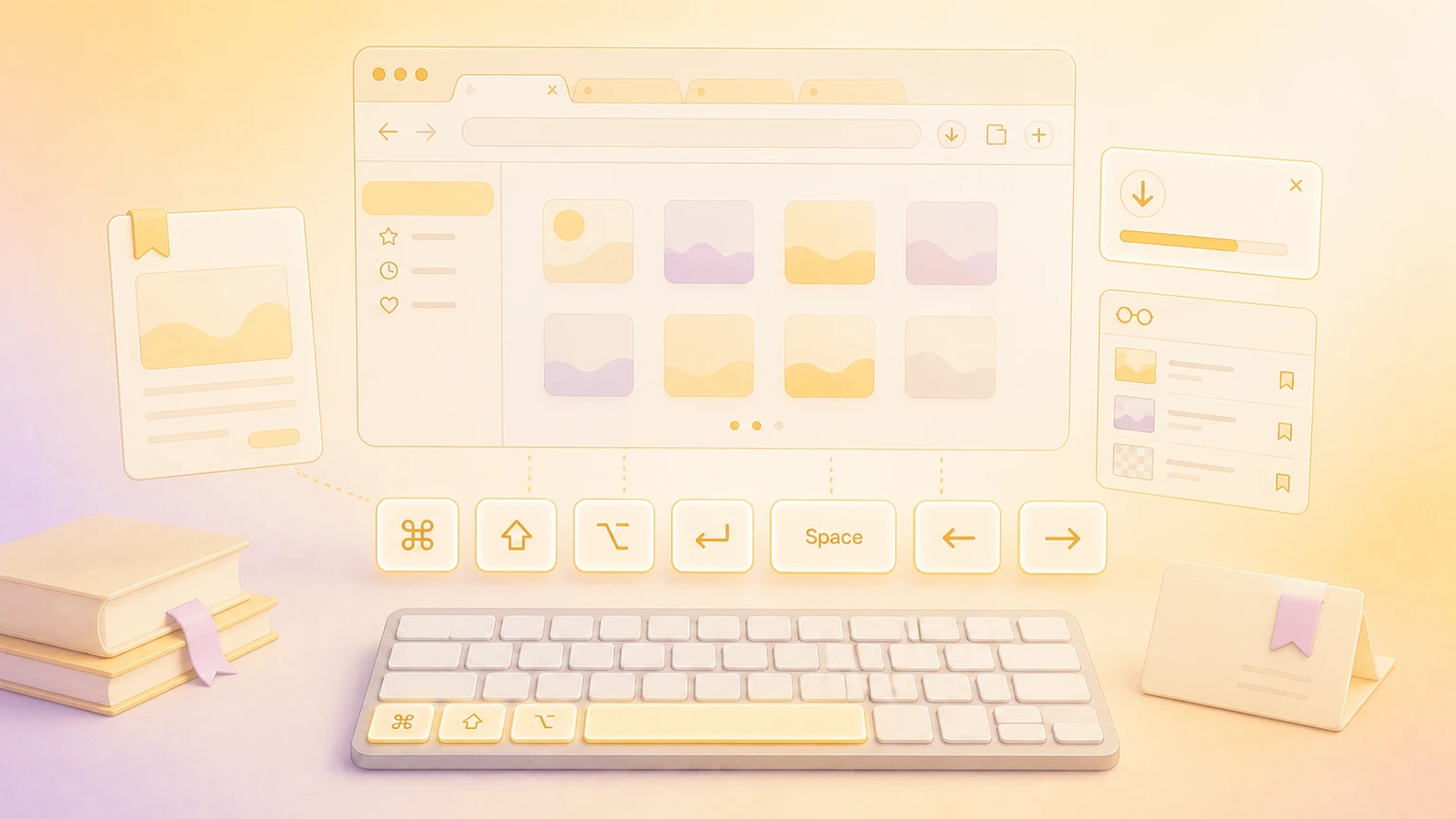
Safari is built into macOS, iPhone, iPad, and Apple Vision Pro, but it still rewards Mac users who treat it like a keyboard-first browser. A few shortcuts can make tabs, search, Reader, bookmarks, downloads, and Reading List feel much less click-heavy.
Apple’s official Safari shortcut guide notes that keyboard shortcuts can vary by language and keyboard layout. If a shortcut does not behave as expected, check the Safari menu bar and your current keyboard input source.
Essential Safari shortcuts
Start with the commands you will use on nearly every browsing session.
| Action | Shortcut |
|---|---|
| Select the Smart Search field | ⌘ + L |
| Search the current web page | ⌘ + F |
| Print the current page | ⌘ + P |
| Copy selected content | ⌘ + C |
| Paste copied content | ⌘ + V |
| Open Safari settings | ⌘ + , |
| Go to your homepage | ⇧ + ⌘ + H |
| Exit full-screen view | Escape |
| Restore the current page address while typing in the Smart Search field | Escape |
Pro tip: ⌘ + L is the fastest way to start a new search, paste a URL, or copy the current page address. Learn it first if you only remember one Safari shortcut.
Tabs and tab overview
Safari’s tab shortcuts are the ones that save the most time during research, shopping, writing, and support work.
| Action | Shortcut |
|---|---|
| Show tab overview | ⇧ + ⌘ + \ |
| Open a link or bookmark in a new tab | ⌘ + Click |
| Open a typed address or search in a new tab | ⌘ + Return |
| Open a link or bookmark in a new active tab | ⇧ + ⌘ + Click |
| Open a typed address or search in a new active tab | ⇧ + ⌘ + Return |
| Go to the next tab | ⌃ + Tab or ⇧ + ⌘ + ] |
| Go to the previous tab | ⌃ + ⇧ + Tab or ⇧ + ⌘ + [ |
| Select one of the first eight tabs | ⌘ + 1 through ⌘ + 8 |
| Select the last tab | ⌘ + 9 |
| Close the active tab | ⌘ + W |
| Reopen the last tab or window you closed | ⇧ + ⌘ + T |
Use the numbered tab shortcuts when you keep pinned or high-priority tabs at the start of the tab bar. ⌘ + 1 through ⌘ + 8 become muscle memory quickly when your first few tabs are stable.
Page navigation and scrolling
These shortcuts keep reading and navigation moving without requiring the trackpad.
| Action | Shortcut |
|---|---|
| Scroll up, down, left, or right | Arrow keys |
| Scroll in larger increments | ⌥ + Arrow keys |
| Scroll down one screen | Space or Page Down |
| Scroll up one screen | ⇧ + Space or Page Up |
| Jump to the top-left of a page | ⌘ + ↑ |
| Jump to the bottom-left of a page | ⌘ + ↓ |
| Go back to the previous page | ⌘ + [ |
| Go forward to the next page | ⌘ + ] |
| Show history by page name | Press and hold the Back or Forward button |
| Show history by URL | ⌥ + press and hold the Back or Forward button |
Pro tip: pair ⌘ + [ and ⌘ + ] with ⌘ + L. You can move through history, then jump straight back into the address field when you know where you want to go next.
Search, fields, and web forms
Safari’s form navigation depends partly on your Safari and macOS keyboard settings.
| Action | Shortcut |
|---|---|
| Find text on the current page | ⌘ + F |
| Highlight the next field or pop-up menu on a page | Tab |
| Highlight the next field, pop-up menu, button, or link | ⌥ + Tab |
| Restore the current page address in the Smart Search field | Escape |
| Select the Smart Search field | ⌘ + L |
Apple notes that Tab and ⌥ + Tab behavior can change if you turn on Safari’s setting to press Tab to highlight each item on a webpage. macOS Keyboard Navigation can also affect what gets focus.
Reader, Reading List, and bookmarks
Safari’s reading tools are especially useful when you are collecting research or saving pages for later.
| Action | Shortcut |
|---|---|
| Show or hide the Reading List sidebar | ⌃ + ⌘ + 2 |
| Add the current page to Reading List | ⇧ + ⌘ + D |
| Add a linked page to Reading List | ⇧ + Click |
| Open Reader | ⇧ + ⌘ + R |
| Close Reader | Escape |
| Show or hide the Bookmarks sidebar | ⌃ + ⌘ + 1 |
| Select the next bookmark or folder in the sidebar | ↑ or ↓ |
| Open the selected bookmark | Space |
| Open the selected folder | Space or → |
| Close the selected folder | Space or ← |
| Rename a selected bookmark | Return |
| Cancel editing a bookmark name | Escape |
If you use Reading List as a lightweight research queue, ⇧ + ⌘ + D is the shortcut to practice. Save the current page, keep browsing, then clean up the list later.
Zoom, downloads, and windows
These shortcuts help when you are presenting, reading dense pages, or switching between Safari windows.
| Action | Shortcut |
|---|---|
| Zoom website content in | ⌘ + + |
| Zoom website content out | ⌘ + - |
| Download a linked file | ⌥ + Click |
| Open a downloaded file from the downloads list | Double-click it in the list |
| Switch to another Safari window | ⌘ + Grave Accent |
| Reopen the last Safari window you closed | ⇧ + ⌘ + T |
| Close the active tab or window | ⌘ + W |
The zoom shortcuts are useful when screen sharing. Increase the page size before a demo, then reset or adjust it from Safari’s View menu when you are done.
Customizing and discovering Safari shortcuts
Safari does not have a full custom shortcut editor inside the app, but macOS can create shortcuts for menu commands. Apple’s Mac app shortcut guide explains the workflow: open System Settings → Keyboard → Keyboard Shortcuts → App Shortcuts, choose Safari, enter the exact menu command name, and assign a new key combination.
That works best for commands that appear in Safari’s menu bar. It will not create shortcuts for general tasks that are not menu commands, and Apple warns that a shortcut may fail if the same key combination is already used somewhere else.
For discovery, use three places: Apple’s current Safari shortcut guide, Safari’s menu bar, and System Settings for app-specific shortcuts or conflicts. If your keyboard layout is not English/QWERTY, the menu bar is the most reliable source for the exact shortcut on your Mac.
Show Safari shortcuts on screen
Recording a browser tutorial, classroom walkthrough, support video, website review, or livestream? KeyScreen displays your keystrokes beautifully on screen so viewers can follow every ⌘ + L, tab switch, Reader command, zoom shortcut, and navigation step without guessing what you pressed.
You can also get KeyScreen on the Mac App Store if you want a clean keystroke overlay for demos, tutorials, remote training, and course videos.