How to Show Function Keys on Your Mac Screen
Show F1–F12 on your Mac screen with KeyScreen. Choose exactly which key types appear so function keys display clearly in recordings and demos.
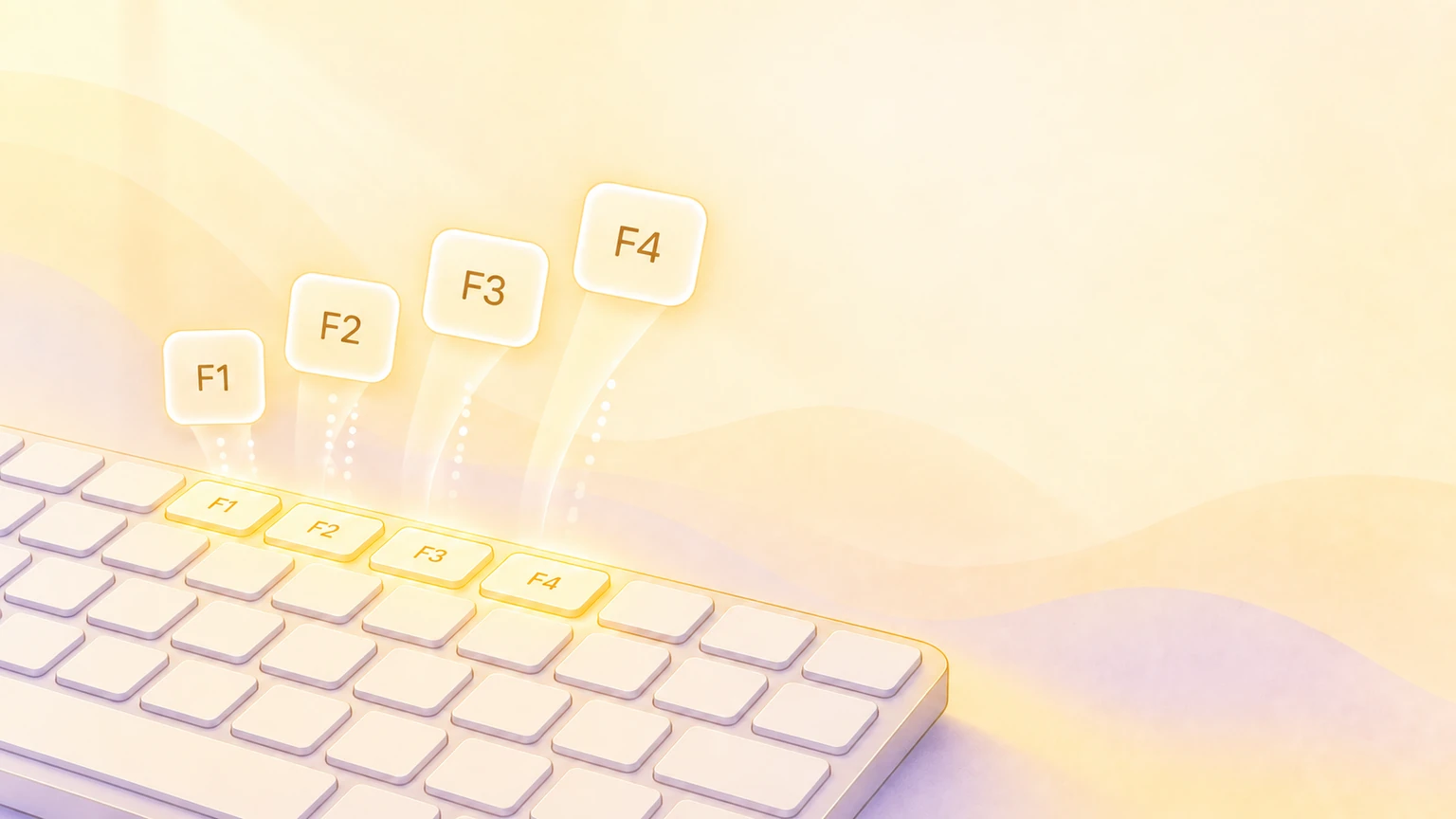
Yes, F1, F2, F3, and the other keys across the top row of a keyboard are called function keys. They are useful in many Mac apps, but they are not always shown correctly by apps that display keystrokes on screen. A function-key press may be missed, shown inconsistently, or replaced by a system action that leaves viewers wondering what you pressed.
KeyScreen handles function keys properly. When you press F1, F2, F3, or another function key, the key can appear clearly in the on-screen overlay. That makes it much easier to teach shortcuts, record a tutorial, demonstrate an app, or help someone follow a workflow.
Show only function keys with KeyScreen
KeyScreen lets you decide which types of keys should appear. To display function keys without showing every letter or number you type:
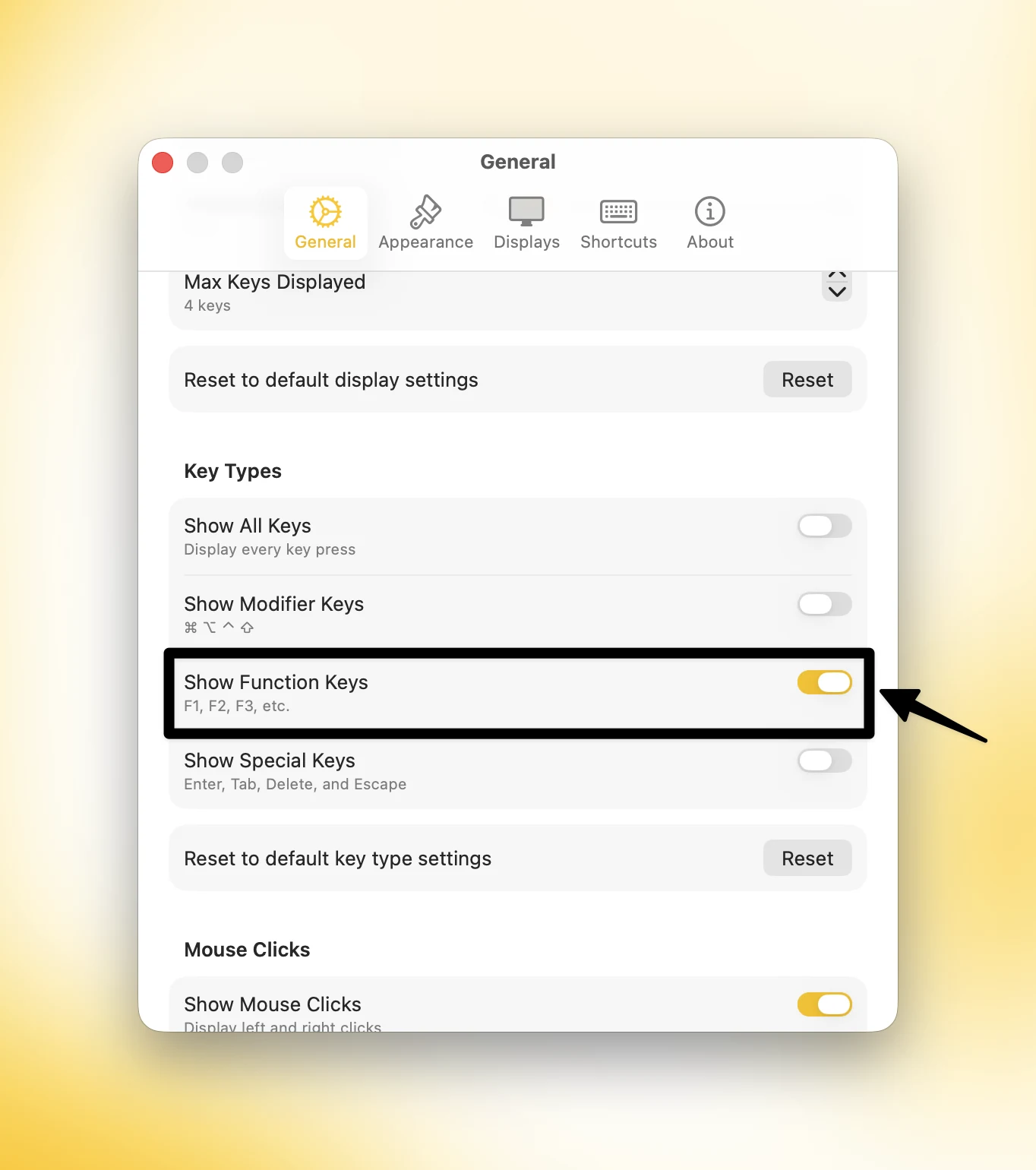
Enable Show Function Keys and disable the other key types when you want the overlay to display only F-key presses.
- Open KeyScreen Settings.
- Go to General, then find Key Types.
- Turn off Show All Keys.
- Turn on Show Function Keys.
- Turn off Show Modifier Keys and Show Special Keys if you want the overlay to show only function-key presses.
Now, when you press a function key, KeyScreen displays it on screen while leaving ordinary typing hidden. KeyScreen only makes the key press visible; it does not change what the key does in macOS or in the app you are using.
Why showing F keys matters
Function keys often trigger actions that are hard to understand from the screen alone. An instructor might press an F key to start a presentation, open a tool, switch a view, run a command, or use an app-specific shortcut. If the key is not visible, viewers see the result but miss the step that caused it.
Showing the key press removes that guesswork. It is especially useful for:
- Software tutorials and online courses.
- Screen recordings and product walkthroughs.
- Live streams and presentations.
- Technical support and training videos.
- Apps that rely heavily on F-key shortcuts.
Because KeyScreen lets you enable function keys separately from modifier and special keys, the overlay stays focused. Your audience sees the input that matters without a stream of unrelated keystrokes. If you need more detail, you can also use Show All Keys to display typing, shortcuts, special keys, and mouse clicks in a chat-style view.
Display F1–F12 clearly on your Mac
Many keystroke visualizers struggle with the function row. KeyScreen is designed to recognize and display these keys reliably, and users appreciate being able to control exactly what appears. You can also customize the overlay's position, colors, size, and style so it fits naturally into your recording or presentation.
Ready to make every function-key press easy to follow? Download KeyScreen from the Mac App Store or purchase it directly from the KeyScreen website.