Apple Preview Keyboard Shortcuts: The Complete Guide for Mac
Work faster in Apple Preview on Mac with keyboard shortcuts for PDF search, page navigation, tabs, image zoom, background removal, saving, and custom menu commands.
Apple Preview handles much of the PDF and image work that comes up during a normal Mac day: reading documents, marking up feedback, signing forms, and preparing pictures. Keyboard shortcuts make those small tasks easier to repeat, especially when you are reviewing several files or demonstrating a workflow.
This guide focuses on everyday PDF and image work. The tables draw on Apple's current Preview keyboard shortcut reference and Mac keyboard shortcut guide. Check Preview's menus if your keyboard layout, language, or macOS version differs. A shortcut can also change meaning when focus moves from the page to a sidebar or text field.
Essential Preview shortcuts
Start with the familiar file commands, then add the Preview-specific navigation below.
| Action | Shortcut |
|---|---|
| Open a file | ⌘ + O |
| Save the current file | ⌘ + S |
| Print the current PDF or image | ⌘ + P |
| Undo the last edit | ⌘ + Z |
| Redo an undone edit | ⇧ + ⌘ + Z |
| Close the active document tab or window | ⌘ + W |
| Open Preview settings | ⌘ + , |
Pro tip: create a working copy before experimenting with a document. Apple's copying guide explains File → Duplicate, followed by saving the copy. Use File → Export when you want a separate file in another format.
Preview saves changes automatically, so closing a file is not a reliable way to discard edits. To reveal Save As, hold ⌥ while opening the File menu. Use File → Revert To when you need an earlier version.
PDF pages, scrolling, and the sidebar
Preview distinguishes moving to another page from scrolling the current view. These commands are especially useful for reports, manuals, and slide decks saved as PDFs.
| Action | Shortcut |
|---|---|
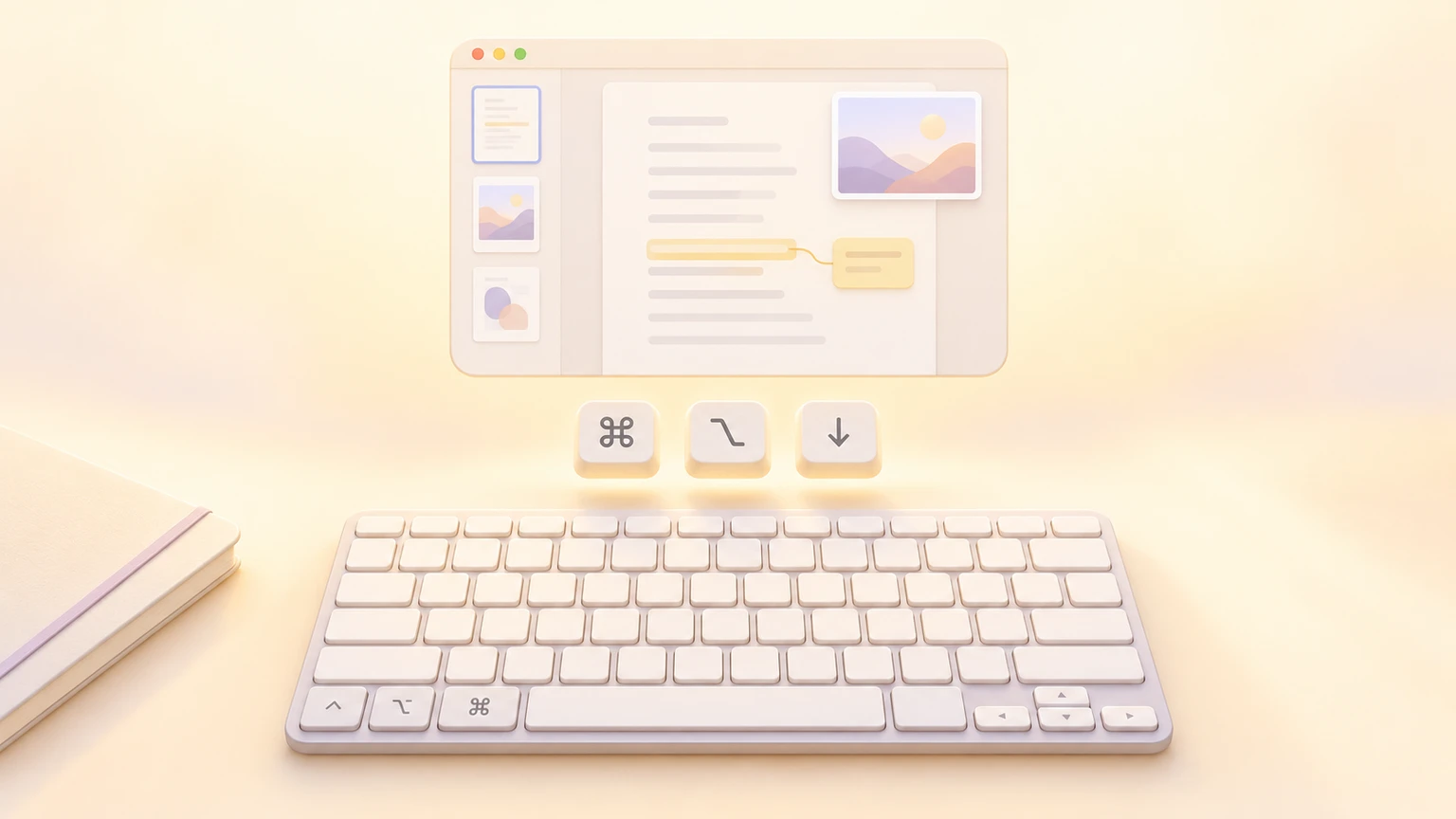
| Advance a page | ⌥ + ↓ |
| Return a page | ⌥ + ↑ |
| Move down a line or sidebar item | ↓ |
| Move up a line or sidebar item | ↑ |
| Advance a screen or image | Page Down |
| Return a screen or image | Page Up |
| Advance a document within the window | ⌥ + Page Down |
| Return a document within the window | ⌥ + Page Up |
On compact Mac keyboards, Fn + ↓ supplies Page Down and Fn + ↑ supplies Page Up. Add ⌥ for the corresponding document commands. These physical-key equivalents are documented in Apple's Mac shortcut guide.
Choose View → Thumbnails to see page previews, or Go → Go to Page to jump to a numbered page. Apple's viewing guide also explains Single Page, Two Pages, and Continuous Scroll.
Pro tip: click the page before using navigation keys if you were editing a note. With the sidebar focused, ↑ and ↓ navigate its items instead. Pick a view mode that suits the task: Continuous Scroll for reading, or Two Pages for checking facing-page layouts.
Search inside a PDF
Use these standard document-search shortcuts while a PDF is active.
| Action | Shortcut |
|---|---|
| Find text | ⌘ + F |
| Find the next occurrence | ⌘ + G |
| Find the previous occurrence | ⇧ + ⌘ + G |
Preview's PDF search guide explains that a phrase search looks for the phrase exactly. Open the magnifying-glass menu and choose Any Match when you want results containing any of its words. You can also sort results by page order or number of matches.
For repeated review sessions, bookmark an important page with Tools → Add Bookmark, then revisit it through View → Bookmarks. Search is useful for finding a term; bookmarks are useful for returning to a section you already know.
Tabs, windows, and full screen
These commands help when comparing documents or keeping a reference PDF beside another app.
| Action | Shortcut |
|---|---|
| Advance a tab | ⌃ + Tab |
| Return a tab | ⌃ + ⇧ + Tab |
| Toggle full screen | ⌃ + ⌘ + F |
| Minimize the front window | ⌘ + M |
| Hide Preview | ⌘ + H |
Tab switching requires documents to be open as tabs. A group of images in one sidebar uses document navigation instead. Check where your files are grouped before practicing either pair of commands.
Zoom several images together
Apple documents these shortcuts specifically for all images in the window. They are handy when reviewing a set of screenshots at a consistent scale.
| Action | Shortcut |
|---|---|
| Show all images at actual size | ⌥ + ⌘ + 0 |
| Fit all images | ⌥ + ⌘ + 9 |
| Enlarge all images | ⌥ + ⌘ + + |
| Reduce all images | ⌥ + ⌘ + - |
For the active PDF or image, use View → Zoom In, Zoom Out, or Actual Size and check the shortcut beside the command. To inspect one detail, choose Tools → Rectangular Selection, select the area, then View → Zoom to Selection. Apple's viewing guide describes these options.
Pro tip: fit the document before a screen-sharing walkthrough, then zoom into the detail you are explaining. This gives viewers a useful sense of where the detail sits on the page.
Copying selections and removing backgrounds
These operations depend on what you have selected and the type of file open.
| Action | Shortcut |
|---|---|
| Copy selected text or an area | ⌘ + C |
| Cut an editable selection | ⌘ + X |
| Paste clipboard content into an image | ⌘ + V |
| Remove an image background, when available | ⇧ + ⌘ + K |
Cut and paste are context-sensitive; Preview does not use them to rewrite the existing body text of a PDF. Check the active selection tool when a command is unavailable.
Apple's background-removal guide notes that Preview may ask to convert an image to PNG. Cancel and duplicate first if you want to keep the original format. If your version does not offer Remove Background, check its available selection tools rather than assuming the shortcut is broken.
Annotation, cropping, and useful menu commands
For commands beyond the tables above, the menu bar shows the shortcut available on your Mac. These are useful places to look while building a review or image-preparation workflow.
| Task | Where to find it |
|---|---|
| Add shapes, text boxes, or a signature | Markup toolbar |
| Review highlighted passages and notes | View → Highlights and Notes |
| Bookmark the current PDF page | Tools → Add Bookmark |
| Resize an image | Tools → Adjust Size |
| Flip an image | Tools → Flip Horizontal or Flip Vertical |
Apple's annotation guide describes the Markup tools. Preview can add feedback and text boxes to a PDF, but it cannot edit the PDF's existing text. Save or export normally to keep annotations editable; printing to PDF flattens them.
For ongoing review, turn on highlight mode and select passages as you read. Then open View → Highlights and Notes to revisit them. Apple's highlighting guide explains colors, underline, strikethrough, and removing marks.
For images, make a rectangular selection around the area you want to keep, then use Crop in the Markup toolbar. Apple's crop and resize guide also explains proportional resizing and rotating multiple selected images. Use the shortcut shown beside your version's menu command if you perform it frequently.
Customize and discover Preview shortcuts
macOS can assign keyboard shortcuts to existing menu commands. Follow Apple's app shortcut customization guide:
- Open System Settings → Keyboard → Keyboard Shortcuts → App Shortcuts.
- Add an entry and choose Preview as the application.
- Enter the menu command exactly as it appears, including punctuation. Use a menu hierarchy if needed to identify the command.
- Press your preferred key combination and save the entry.
- Return to Preview and check the menu for your new shortcut.
Adjust Size is a useful candidate if you prepare images often. The combination you assign is your own custom shortcut, not a universal Preview default. A conflicting combination may fail, so check both Preview's menus and macOS shortcuts before choosing it.
App Shortcuts works for menu commands, not every toolbar control or general task. For discovery, keep Apple's Preview reference nearby and inspect the File, Edit, View, Go, and Tools menus with the relevant file open. A disabled command often means the current file, selection, or focus does not support that action.
Show Preview shortcuts on screen
When teaching PDF review, recording an image-editing tutorial, or helping someone navigate a document, the keyboard steps can be easy to miss. KeyScreen shows your keystrokes on screen so viewers can follow a search, page change, save command, or custom shortcut as you demonstrate it.
Pair the overlay with a readable document zoom and a steady pace. Creators, teachers, presenters, and support teams can also get KeyScreen on the Mac App Store for their Mac walkthroughs.