Microsoft Outlook Keyboard Shortcuts: The Complete Guide for Mac
Move through mail, calendar, search, replies, formatting, flags, and folders faster with Microsoft Outlook keyboard shortcuts for Mac.
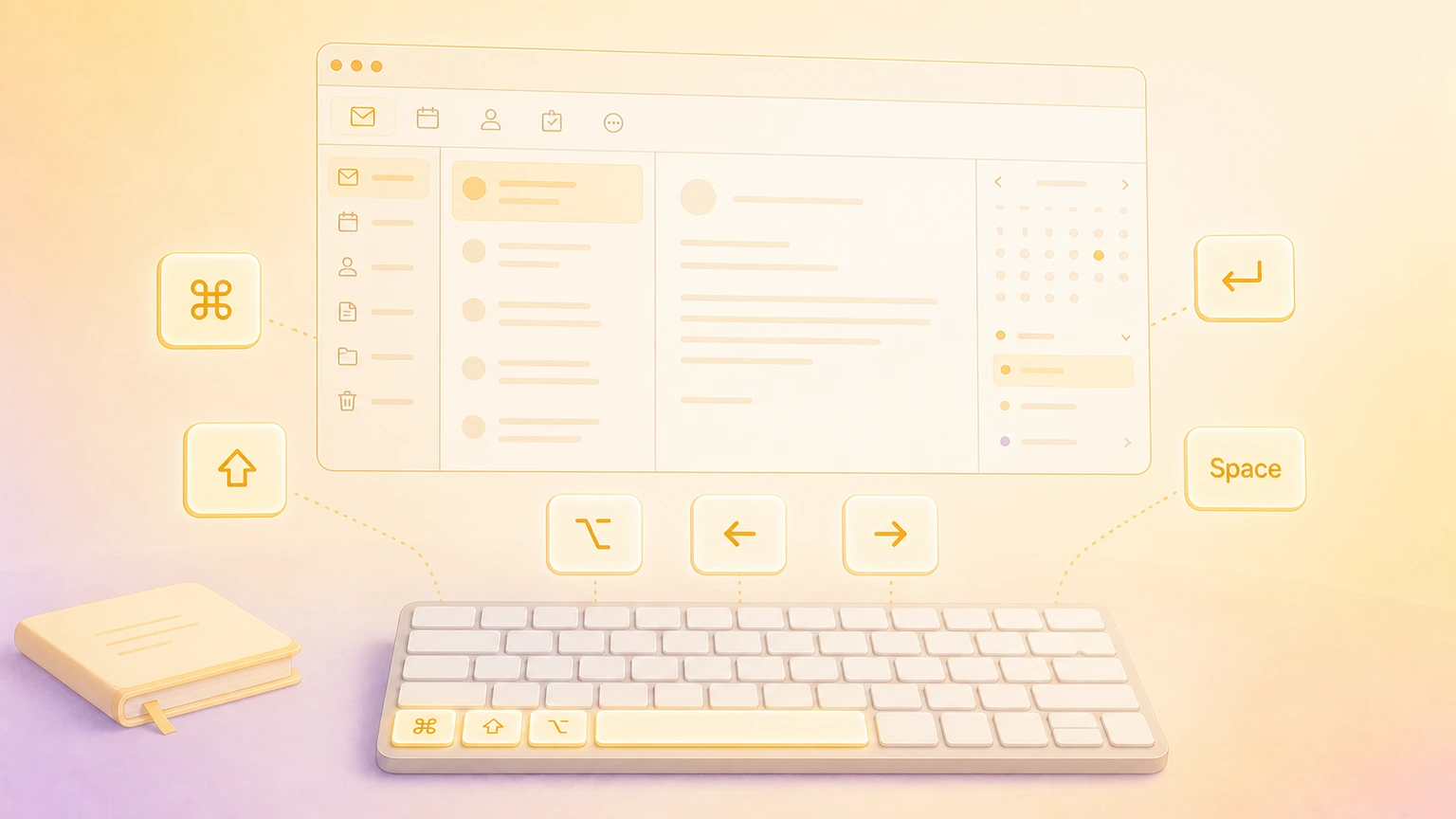
Microsoft Outlook is a daily command center for email, calendars, contacts, files, and meetings on the Mac. It also has a deep keyboard shortcut set that makes inbox triage feel far less click-heavy.
Microsoft notes that some shortcuts can conflict with macOS settings, utility apps, keyboard layouts, or function-key behavior. It also says the numbered view shortcuts can depend on how your Outlook navigation rail is configured. If a shortcut does not match your setup, check Outlook's menus and Microsoft's current Outlook for Mac shortcut reference.
Essential Outlook shortcuts
Start with these commands before learning the deeper mail and calendar shortcuts.
| Action | Shortcut |
|---|---|
| Save the current item | ⌘ + S |
| Print the current item | ⌘ + P |
| Undo the last action | ⌘ + Z |
| Redo the last action | ⌘ + Y |
| Create a new email in Mail view | ⌘ + N |
| Create a new folder in the folder pane | ⇧ + ⌘ + N |
| Open Outlook preferences | ⌘ + , |
| Hide Outlook | ⌘ + H |
| Minimize the active window | ⌘ + M |
| Close the active window | ⌘ + W |
| Quit Outlook | ⌘ + Q |
| Insert emoji | ⌃ + ⌘ + Space |
Pro tip: use ⌘ + N contextually. In Mail view it starts a new email, and in Calendar view it creates a new appointment.
Views, windows, and panes
Outlook is easier to drive when you can jump between Mail, Calendar, Contacts, and open items without hunting through the sidebar.
| Action | Shortcut |
|---|---|
| Go to Mail view | ⌘ + 1 |
| Go to Calendar view | ⌘ + 2 |
| Go to Contacts view | ⌘ + 3 |
| Open the Favorites pane | ⌘ + 4 |
| Hide the reading pane or show it on the right | ⌘ + \ |
| Hide the reading pane or show it below | ⇧ + ⌘ + \ |
| Open the selected item | ⌘ + O |
| Cycle forward through open Outlook windows | ⌘ + ~ |
| Cycle backward through open Outlook windows | ⇧ + ⌘ + ~ |
| Move forward through controls in a window | Tab |
| Move backward through controls in a window | ⇧ + Tab |
If ⌘ + 1, ⌘ + 2, or ⌘ + 3 opens a different view than expected, check your pinned apps and navigation rail order. Microsoft notes that those numbers can depend on your configuration.
Search and find
Use these shortcuts when you know what you need but do not want to dig through folders manually.
| Action | Shortcut |
|---|---|
| Search the current folder | ⌥ + ⌘ + F |
| Advanced search with Item Contains filter | ⇧ + ⌘ + F |
| Find text inside an open item | ⌘ + F |
| Find the next match inside an item | ⌘ + G |
| Find the previous match inside an item | ⇧ + ⌘ + G |
For fast inbox work, combine search with folder moves: find the message, press ⇧ + ⌘ + M, choose the destination folder, then keep going.
Sending and receiving mail
These are the shortcuts most Outlook users should learn first.
| Action | Shortcut |
|---|---|
| Create a new message | ⌘ + N |
| Send the open message | ⌘ + Return |
| Send and receive all mail | ⌃ + ⌘ + K |
| Send all messages in the Outbox | ⇧ + ⌘ + K |
| Save the open message to Drafts | ⌘ + S |
| Add an attachment to the open message | ⌘ + E |
| Open Spelling and Grammar | ⇧ + ⌘ + : |
| Reply to sender | ⌘ + R |
| Reply all | ⇧ + ⌘ + R |
| Forward message | ⌘ + J |
| Open selected message in a separate window | ⌘ + O |
| Mark selected message as junk | ⇧ + ⌘ + J |
| Mark selected message as not junk | ⇧ + ⌥ + ⌘ + J |
Pro tip: ⌘ + Return is fast, so build a review habit before you use it. Scan recipients, attachments, and subject line first, then send.
Reading and triaging messages
These commands help you process messages without leaving the list or reading pane.
| Action | Shortcut |
|---|---|
| Display previous message | ⌃ + [ |
| Display next message | ⌃ + ] |
| Navigate to previous pane in Mail view | ⇧ + ⌃ + [ |
| Navigate to next pane in Mail view | ⇧ + ⌃ + ] |
| Move selected message to a folder | ⇧ + ⌘ + M |
| Copy selected item to a different folder | ⇧ + ⌘ + C |
| Decrease display text size | ⌘ + - |
| Increase display text size | ⌘ + + |
| Scroll down in a message | Space |
| Scroll up in a message | ⇧ + Space |
| Delete selected message | Delete |
| Permanently delete selected message | ⇧ + Delete |
| Delete current open message and close its window | ⌘ + Delete |
| Mark selected messages as read | ⌘ + T |
| Mark selected messages as unread | ⇧ + ⌘ + T |
| Mark all messages in a folder as read | ⌥ + ⌘ + T |
| Archive selected message | ⌃ + E |
The read/unread shortcuts are especially useful in shared inboxes and busy project folders. Select a batch, mark it read or unread, then move it without opening every message.
Calendar shortcuts
Outlook's calendar has a smaller shortcut set, but the navigation commands are worth memorizing.
| Action | Shortcut |
|---|---|
| Open Calendar view | ⌘ + 2 |
| Create a new appointment | ⌘ + N |
| Open selected calendar event | ⌘ + O |
| Delete selected calendar event | Delete |
| Show today | ⌘ + T |
| Move to previous day, week, or month | ⌥ + ⌘ + ← |
| Move to next day, week, or month | ⌥ + ⌘ + → |
| Navigate to previous pane in Calendar view | ⇧ + ⌃ + [ |
| Navigate to next pane in Calendar view | ⇧ + ⌃ + ] |
The previous and next commands follow the current calendar view. In Day view they move by day, in Week or Work Week view they move by week, and in Month view they move by month.
Contacts and people
If you use Outlook for contacts, these keep the People view moving.
| Action | Shortcut |
|---|---|
| Create a new contact | ⌘ + N |
| Open selected contact | ⌘ + O |
| Delete selected contact | Delete |
| Close current contact and open previous contact | ⌃ + [ |
| Close current contact and open next contact | ⌃ + ] |
| Navigate to previous pane in People view | ⇧ + ⌃ + [ |
| Navigate to next pane in People view | ⇧ + ⌃ + ] |
The pane navigation pattern is consistent across Mail, Calendar, and People, so ⇧ + ⌃ + [ and ⇧ + ⌃ + ] are good shortcuts to practice once and reuse.
Editing and formatting messages
Use these while your cursor is inside a message body or editable field.
| Action | Shortcut |
|---|---|
| Cut selected text | ⌘ + X |
| Copy selected text | ⌘ + C |
| Paste | ⌘ + V |
| Paste and match destination style | ⇧ + ⌥ + ⌘ + V |
| Bold selected text | ⌘ + B |
| Italicize selected text | ⌘ + I |
| Underline selected text | ⌘ + U |
| Strikethrough selected text | ⇧ + ⌘ + X |
| Insert hyperlink | ⌘ + K |
| Move to beginning of current word | ⌥ + ← |
| Move to end of current word | ⌥ + → |
| Move to beginning of current paragraph | ⌥ + ↑ |
| Move to end of current paragraph | ⌥ + ↓ |
| Decrease indent | ⌘ + { |
| Increase indent | ⌘ + } |
| Delete character to the right | Fn + Delete |
| Move to beginning of line | ⌘ + ← |
| Move to end of line | ⌘ + → |
| Move to top of message body | ⌘ + ↑ |
| Move to bottom of message body | ⌘ + ↓ |
Pro tip: ⇧ + ⌥ + ⌘ + V is the shortcut to use when pasting from another app into an email. It avoids bringing in mismatched fonts, sizes, and colors.
Flags and follow-up
Outlook's flag shortcuts are compact, but easy to learn because the numbers map to due-date choices.
| Action | Shortcut |
|---|---|
| Flag for follow-up today | ⌃ + 1 |
| Flag for follow-up tomorrow | ⌃ + 2 |
| Flag for follow-up this week | ⌃ + 3 |
| Flag for follow-up next week | ⌃ + 4 |
| Flag with no due date | ⌃ + 5 |
| Flag with a custom due date | ⌃ + 6 |
| Flag and add a reminder | ⌃ + = |
| Mark selected item as complete | ⌃ + 0 |
These are useful when email doubles as a lightweight task list. Use flags for follow-up, then archive or move messages so the inbox does not become the only place you remember work.
Customizing and discovering Outlook shortcuts
Outlook for Mac does not use the same in-app Tools → Customize Keyboard workflow that Word and Excel use. Microsoft says custom shortcuts for Outlook for Mac should be created through macOS instead: go to System Settings → Keyboard → Keyboard Shortcuts → App Shortcuts, add Microsoft Outlook, enter the exact menu command name, then assign your shortcut.
That approach works best for menu commands. If a command is not exposed in the menu bar, macOS may not be able to assign a shortcut to it. Microsoft also recommends using Outlook Help to confirm the exact menu name before creating the shortcut.
For discovery, keep three places in mind: Microsoft's Outlook for Mac shortcut reference, Outlook's own menu bar, and System Settings for macOS conflicts. If a shortcut involves a function key or behaves like a system shortcut, your keyboard settings may be the reason.
Show Outlook shortcuts on screen
Recording an Outlook onboarding video, client-support walkthrough, email-productivity lesson, or calendar demo? KeyScreen displays your keystrokes beautifully on screen so viewers can follow every ⌘ + N, ⌘ + R, folder move, search, flag, and calendar shortcut without guessing what you pressed.
You can also get KeyScreen on the Mac App Store if you want a clean keystroke overlay for tutorials, demos, livestreams, and remote training.