DaVinci Resolve Keyboard Shortcuts Every Mac Editor Should Know
Edit, trim, color grade, and move through DaVinci Resolve faster with the Mac keyboard shortcuts worth building into muscle memory.
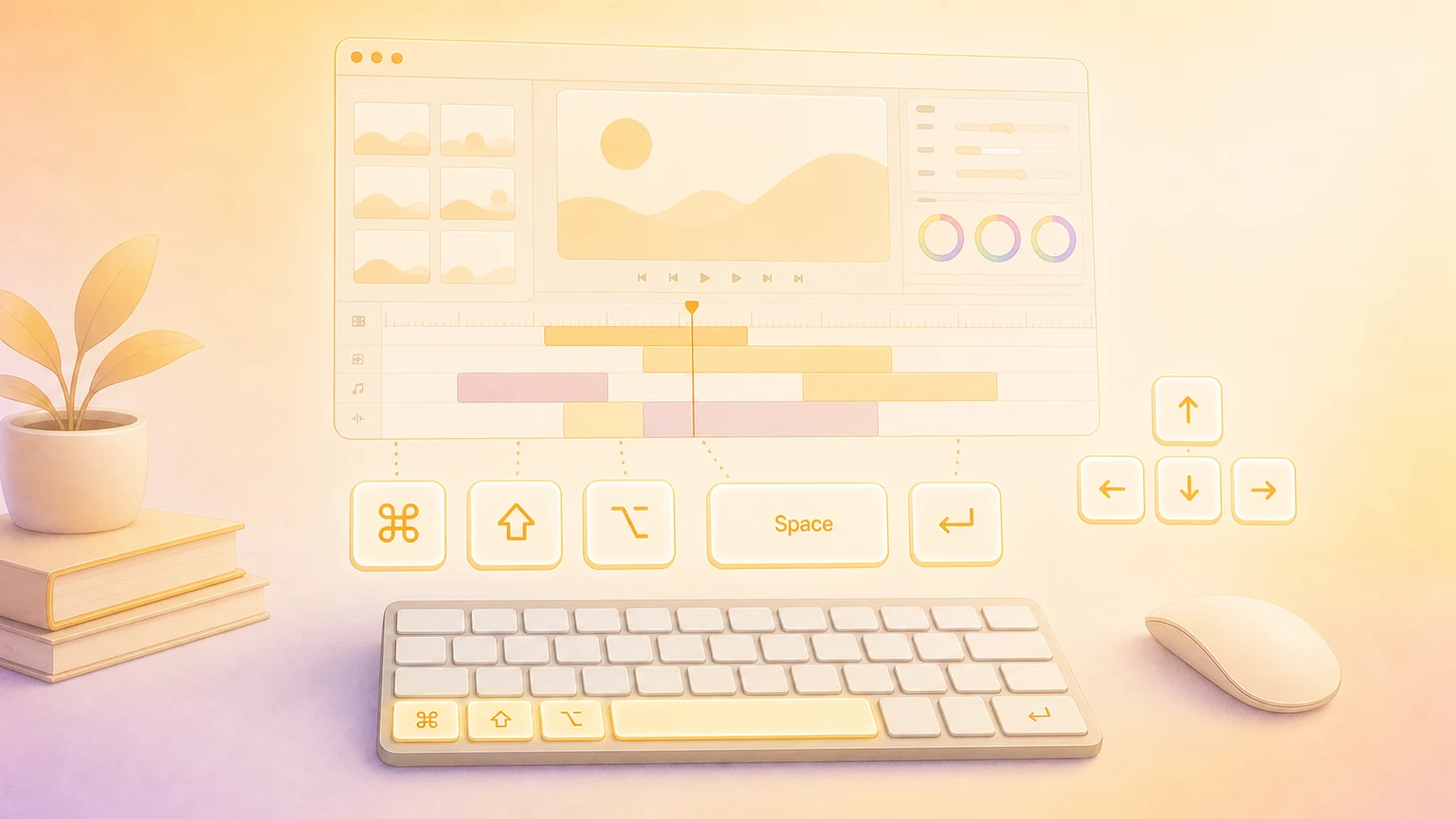
DaVinci Resolve is deep enough to handle editing, color, Fusion effects, Fairlight audio, and delivery in one app. The trick is not memorizing every command at once. Start with the shortcuts that keep playback, trimming, and navigation under your fingers.
Resolve can use different keyboard presets, and many commands are context-specific. Treat this as a practical Mac default cheat sheet, then confirm or customize your own setup in DaVinci Resolve → Keyboard Customization.
App and project shortcuts
These are the everyday commands worth knowing before you start cutting.
| Action | Shortcut |
|---|---|
| Open Keyboard Customization | ⌥ + ⌘ + K |
| Open Preferences | ⌘ + , |
| Open Project Settings | ⇧ + 9 |
| Save Project | ⌘ + S |
| Save Project As | ⇧ + ⌘ + S |
| Import Media | ⌘ + I |
| New Timeline | ⌘ + N |
| New Bin | ⇧ + ⌘ + N |
| Quit DaVinci Resolve | ⌘ + Q |
Page navigation
Resolve is fastest when you can jump between pages without hunting for the bottom toolbar.
| Page | Shortcut |
|---|---|
| Project Manager | ⇧ + 1 |
| Media | ⇧ + 2 |
| Cut | ⇧ + 3 |
| Edit | ⇧ + 4 |
| Fusion | ⇧ + 5 |
| Color | ⇧ + 6 |
| Fairlight | ⇧ + 7 |
| Deliver | ⇧ + 8 |
| Project Settings | ⇧ + 9 |
Playback and navigation
These shortcuts make review passes feel much smoother.
| Action | Shortcut |
|---|---|
| Play / Pause | Space |
| Play reverse | J |
| Stop | K |
| Play forward | L |
| Step back / forward one frame | ← / → |
| Go to previous / next edit | ↑ / ↓ |
| Go to start of timeline | Fn + ← |
| Go to end of timeline | Fn + → |
| Play around current frame | / |
| Toggle loop playback | ⌘ + / |
Marking and markers
Use these for clean three-point edits, review notes, and quick timeline navigation.
| Action | Shortcut |
|---|---|
| Set In point | I |
| Set Out point | O |
| Clear In point | ⌥ + I |
| Clear Out point | ⌥ + O |
| Clear In and Out | ⌥ + X |
| Mark clip | X |
| Go to In point | ⇧ + I |
| Go to Out point | ⇧ + O |
| Add marker | M |
| Modify marker | ⇧ + M |
| Delete marker | ⌥ + M |
| Go to previous / next marker | ⇧ + ↑ / ⇧ + ↓ |
| Play In to Out | ⌥ + / |
Core editing tools
These are the keys you will use constantly on the Cut and Edit pages.
| Action | Shortcut |
|---|---|
| Selection mode | A |
| Trim mode | T |
| Dynamic Trim mode | W |
| Blade tool | B |
| Toggle snapping | N |
| Split clip at playhead | ⌘ + B |
| Undo | ⌘ + Z |
| Redo | ⇧ + ⌘ + Z |
| Cut | ⌘ + X |
| Copy | ⌘ + C |
| Paste | ⌘ + V |
| Delete selected clip or item | Delete |
| Ripple delete | ⇧ + Delete |
| Enable / disable selected clip | D |
| Select all | ⌘ + A |
| Deselect all | ⇧ + ⌘ + A |
Timeline edits
Once your source and timeline are marked, these commands handle common edit operations.
| Action | Shortcut |
|---|---|
| Insert edit | F9 |
| Overwrite edit | F10 |
| Replace edit | F11 |
| Fit to Fill edit | ⇧ + F11 |
| Place on Top edit | F12 |
| Append at End of Timeline | ⇧ + F12 |
| Select nearest clip or gap | ⇧ + V |
| Select forward clips on this track | Y |
| Select previous clips on this track | ⌘ + Y |
Trimming shortcuts
Trimming is where Resolve shortcuts really start paying rent.
| Action | Shortcut |
|---|---|
| Trim start to playhead | ⇧ + [ |
| Trim end to playhead | ⇧ + ] |
| Ripple trim start to playhead | ⇧ + ⌘ + [ |
| Ripple trim end to playhead | ⇧ + ⌘ + ] |
| Nudge selected clip left / right one frame | , / . |
| Nudge selected clip left / right five frames | ⇧ + , / ⇧ + . |
View and timeline zoom
Use these when the timeline starts feeling too cramped.
| Action | Shortcut |
|---|---|
| Zoom in | = |
| Zoom out | - |
| Zoom to full timeline extent | ⇧ + Z |
| Full screen viewer | ⌘ + F |
| Toggle source / timeline viewer | Q |
Color page shortcuts
These are especially useful when you are building node trees or comparing grades.
| Action | Shortcut |
|---|---|
| Add serial node | ⌥ + S |
| Add parallel node | ⌥ + P |
| Add layer node | ⌥ + L |
| Add splitter-combiner node | ⌥ + Y |
| Enable / disable selected node | ⌘ + D |
| Enable / disable all nodes | ⌥ + D |
| Bypass all grades | ⇧ + D |
| Toggle highlight | ⇧ + H |
| Go to previous / next node | ⇧ + ⌥ + ; / ⇧ + ⌥ + ' |
Customize shortcuts
Open DaVinci Resolve → Keyboard Customization or press ⌥ + ⌘ + K. From there you can search commands, inspect the active preset, assign your own shortcuts, and save custom keyboard layouts.
If a shortcut does not behave as expected, check the active page, focused panel, keyboard preset, and keyboard layout. Resolve can map the same key to different panel-specific actions, so focus matters.
Show your shortcuts on screen
Recording a Resolve tutorial or teaching an edit live? KeyScreen displays your keystrokes beautifully on screen so viewers can follow every trim, cut, marker, and playback command without guessing what you pressed.