Zoom Keyboard Shortcuts: The Complete Guide for Mac
Run Zoom meetings faster on Mac with essential shortcuts for audio, video, screen sharing, chat, reactions, recording, phone calls, and navigation.
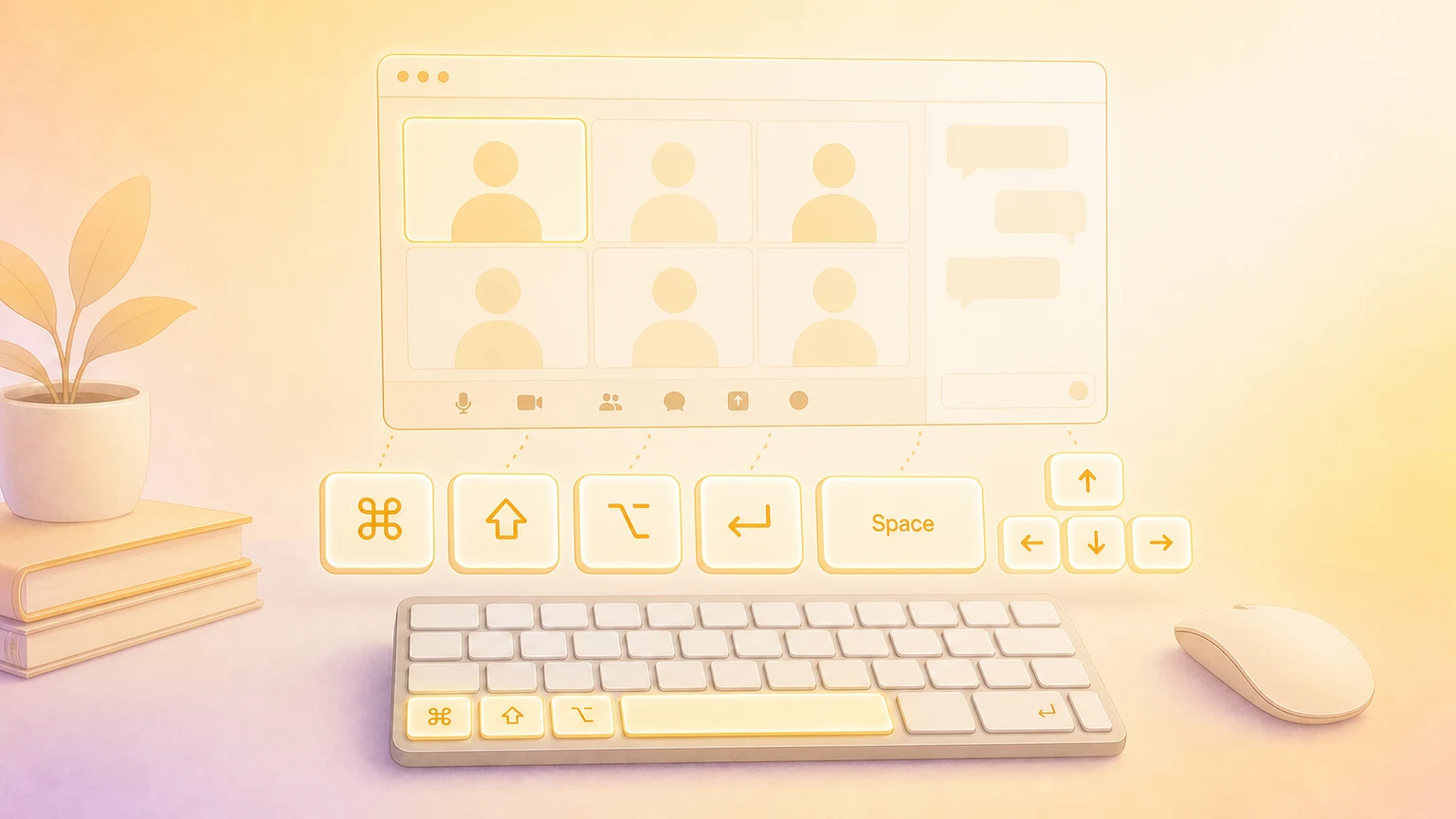
Zoom Workplace is one of the most familiar Mac apps for meetings, webinars, team chat, screen sharing, and remote collaboration. It is also much easier to manage when you can reach the core controls without searching for buttons during a live call.
Zoom’s official shortcut reference says Mac shortcuts are listed inside the desktop app under Settings → Keyboard shortcuts. Many shortcuts can be edited, and some can be enabled as global shortcuts so they work even when Zoom is not the focused app. This guide uses consistent Mac notation: ⌘ for Command, ⇧ for Shift, ⌥ for Option, and ⌃ for Control.
Essential Zoom shortcuts
Start with the shortcuts that help most during everyday meetings.
| Action | Shortcut |
|---|---|
| Join a meeting | ⌘ + J |
| Start a meeting | ⌘ + ⌃ + V |
| Schedule a meeting | ⌘ + D |
| Mute or unmute audio | ⇧ + ⌘ + A |
| Temporarily unmute while pressed | Space |
| Start or stop video | ⇧ + ⌘ + V |
| Start or stop screen sharing | ⇧ + ⌘ + S |
| Pause or resume screen sharing | ⇧ + ⌘ + T |
| Open or close in-meeting chat | ⇧ + ⌘ + H |
| Show or hide participants | ⌘ + U |
| Raise or lower hand | ⌥ + Y |
| End or leave by closing the current window | ⌘ + W |
Pro tip: make ⇧ + ⌘ + A, ⇧ + ⌘ + V, and ⇧ + ⌘ + S your first three shortcuts. They cover the meeting controls people most often need in a hurry.
Meeting controls
These shortcuts are useful for hosts, presenters, teachers, trainers, and anyone who runs meetings from a Mac.
| Action | Shortcut |
|---|---|
| Screen share using direct share | ⌘ + ⌃ + S |
| Mute everyone except the host | ⌘ + ⌃ + M |
| Unmute everyone except the host | ⌘ + ⌃ + U |
| Switch camera | ⇧ + ⌘ + N |
| Switch speaker, multi-speaker, and gallery view | ⇧ + ⌘ + W |
| Previous page of gallery participants | ⌃ + P |
| Next page of gallery participants | ⌃ + N |
| Open the invite window | ⌘ + I |
| Copy the invite link | ⇧ + ⌘ + I |
| Enter or exit full screen | ⇧ + ⌘ + F |
| Switch to minimal window | ⇧ + ⌘ + M |
| Enable or disable dual-monitor mode | ⇧ + ⌘ + D |
| Show or hide floating meeting controls | ⌃ + ⌥ + ⌘ + H |
| Toggle Always Show meeting controls | ⌃ + \\ |
| Read active speaker name | ⌘ + 2 |
Host-only commands only work when your Zoom role allows them. If a shortcut is missing or behaves differently, update Zoom and check the app’s Keyboard shortcuts settings.
Recording, reactions, and remote control
Use these when you record lessons, manage audience feedback, or support someone remotely.
| Action | Shortcut |
|---|---|
| Start or stop local computer recording | ⇧ + ⌘ + R |
| Start or stop cloud recording | ⇧ + ⌘ + C |
| Pause or resume recording | ⇧ + ⌘ + P |
| Open meeting reactions | ⇧ + ⌘ + Y |
| Send clap reaction | ⌥ + ⌘ + 4 |
| Send thumbs-up reaction | ⌥ + ⌘ + 5 |
| Send heart reaction | ⌥ + ⌘ + 6 |
| Send joy reaction | ⌥ + ⌘ + 7 |
| Send wow reaction | ⌥ + ⌘ + 8 |
| Send celebrate reaction | ⌥ + ⌘ + 9 |
| Begin remote control | ⌃ + ⇧ + R |
| Revoke or give up remote control permission | ⌃ + ⇧ + G |
| Open the AI chat panel in a meeting | ⇧ + ⌘ + O |
If your team uses reactions as a lightweight meeting signal, ⌥ + Y for raise hand and ⇧ + ⌘ + Y for the reactions panel are worth practicing together.
In-meeting chat
Zoom chat shortcuts are easiest to use when the chat panel or message list already has keyboard focus.
| Action | Shortcut |
|---|---|
| Open or close in-meeting chat | ⇧ + ⌘ + H |
| Focus the last received parent message | ⇧ + ⌘ + U |
| Focus the chat input field | ⇧ + ⌘ + E |
| Create a new chat with meeting participants | ⌘ + N |
| Send a message from the standard compose field | Return |
| Insert a newline in rich text mode | Return |
Zoom notes that rich text formatting can change send behavior: when rich text formatting is active, Return creates a new paragraph and you use the send button instead.
Team Chat shortcuts
Outside meetings, Zoom Team Chat has its own shortcuts for search, navigation, message creation, and channel management.
| Action | Shortcut |
|---|---|
| Take a screenshot | ⌘ + T |
| Search in chat or channel | ⌘ + F |
| Go back in chat history | ⌘ + [ |
| Go forward in chat history | ⌘ + ] |
| Start a new message | ⌘ + N |
| Collapse all | ⌥ + ⌘ + 0 |
| Add member to current group chat or channel | ⌥ + ⌘ + I |
| Focus all chats and channels | ⇧ + ⌘ + L |
| Jump to start of new messages | ⌘ + ⌃ + N |
| Focus latest message in current chat or channel | ⇧ + ⌘ + U |
| Focus chat input field | ⇧ + ⌘ + E |
Pro tip: use ⌘ + F inside a chat or channel when you are looking for a file, decision, link, or message fragment. It is faster than scrolling through a long conversation.
Chat formatting
Zoom’s chat editor supports standard text formatting shortcuts on Mac.
| Action | Shortcut |
|---|---|
| Bold selected text | ⌘ + B |
| Italicize selected text | ⌘ + I |
| Strikethrough selected text | ⌘ + ⇧ + X |
| Start a bulleted list | ⌘ + ⇧ + 8 |
Zoom also supports richer formatting controls from the compose box, but keyboard availability can depend on app version, account settings, and whether you are using standard text, rich text, or Markdown formatting.
Phone and Clips shortcuts
If your organization uses Zoom Phone or Clips, these shortcuts save time in call handling and short video updates.
| Action | Shortcut |
|---|---|
| Record a new Clip | ⇧ + ⌘ + C |
| Call highlighted number or search directory | ⌃ + ⇧ + C |
| Accept inbound call | ⌃ + ⇧ + A |
| Decline inbound call | ⌃ + ⇧ + D |
| End current call | ⌃ + ⇧ + E |
| Mute or unmute call | ⌃ + ⇧ + M |
| Hold or unhold call | ⌃ + ⇧ + H |
| Transfer call | ⌃ + ⇧ + T |
Some of these features require the right Zoom product, license, or admin configuration. Treat the app’s own shortcut settings as the current source when a command is not available in your workspace.
General navigation
Zoom Workplace now includes meetings, chat, calendar, phone, whiteboard, clips, and AI panels, so product-tab navigation matters more than it used to.
| Action | Shortcut |
|---|---|
| Global search | ⌘ + E |
| Increase chat display size | ⌘ + + |
| Decrease chat display size | ⌘ + - |
| Reset chat display size | ⌘ + 0 |
| Close current window | ⌘ + W |
| Start Zoom Client Healthcheck | ⌘ + ⌥ + ⇧ + D |
| Move to next product tab | ⌃ + Tab |
| Move to previous product tab | ⌃ + ⇧ + Tab |
| Switch to product tab 1 through 8 | ⌘ + 1 through ⌘ + 8 |
| Move to the last product tab | ⌘ + 9 |
| Switch between portrait and landscape views | ⌘ + L |
| Share Log | ⌃ + ⌥ + ⇧ + V |
| Show or hide AI chat panel | ⇧ + ⌘ + O |
| Show or hide Calendar side panel | ⇧ + ⌘ + J |
If ⌘ + 1 through ⌘ + 8 conflicts with another habit from browsers or editors, decide whether Zoom tab switching is frequent enough to keep in muscle memory.
Customizing and discovering Zoom shortcuts
To view or edit Zoom shortcuts on Mac, sign in to the Zoom desktop app, click your profile picture, open Settings, and choose Keyboard shortcuts. Click a shortcut, press the new key combination you want, and save the assignment.
Zoom also lets some commands work as global shortcuts. Enable that only for shortcuts you genuinely need while presenting or working in another app, such as mute, video, or screen sharing. Global shortcuts can overlap with macOS and other app shortcuts, so test them before using them in a live class, webinar, or client call.
For the current list, use Zoom’s official hot keys and keyboard shortcuts reference and the Keyboard shortcuts panel inside your installed Zoom app.
Show Zoom shortcuts on screen
Recording a Zoom training session, customer-support walkthrough, online class, webinar, or remote team demo? KeyScreen displays your keystrokes beautifully on screen so viewers can follow every mute toggle, screen-share command, chat shortcut, and reaction without guessing what you pressed.
You can also get KeyScreen on the Mac App Store if you want a clean keystroke overlay for tutorials, demos, livestreams, and remote training.